Wednesday, 3 May 2017

Tuesday, 28 March 2017


Thursday, 23 February 2017
DELL 968 Printer problem–Cartridge slams against printer wall
Fix was as simple as removing the cartridges, then turing off the printer at the plug socket on the wall, then squeezing the drive belt and computer cables that connects to the cartridge compartment, with my finger and thumb a few times.
Many thanks to the forums for posting this fix here, has saved me the cost of a new printer …
http://en.community.dell.com/support-forums/desktop/f/3514/t/6603745
Wednesday, 15 February 2017
Resharper shorcut cheat sheet
Quite by chance today I stumbled across a new way to learn Resharper shortcuts.
In visual studio, when editing a file, tap the ctrl key three times in quick succession. This brings up the cheat sheet

Then hold down the Ctrl key, Shift Key, or Alt Key when the dialog is open, and you'll see what short cuts are applicable to the development pane that you're in

Thursday, 12 January 2017
Macros alternative for VS 2013 /2015
Finally an alternative to
https://vlasovstudio.com/visual-commander/professional_edition.html
which lets you record as well…

Find action constants for dte.Find listed here…
https://msdn.microsoft.com/en-us/library/aa301226(v=vs.71).aspx
e.g.
dte.ExecuteCommand("Edit.Find");
dte.Find.FindWhat = "DROP CONSTRAINT";
dte.Find.Target = 1; //vsFindTarget.vsFindTargetCurrentDocument;
dte.Find.MatchCase = false;
dte.Find.MatchWholeWord = false;
dte.Find.Backwards = false;
dte.Find.MatchInHiddenText = false;
dte.Find.PatternSyntax = 0; // vsFindPatternSyntax.vsFindPatternSyntaxLiteral;
dte.Find.Action = 1; //vsFindAction.vsFindActionFind
Wednesday, 4 January 2017
Edit.SelectToLastGoBack in Visual Studio

Very handy shortcut for this Ctrl + = in visual studio. Basically selects all the text between the last two navigation points you were looking at in a text file.
Friday, 4 November 2016
Powershell for finding hotfixes
One liner:
More full version:
$wu = new-object -com “Microsoft.Update.Searcher”
$totalupdates = $wu.GetTotalHistoryCount()
$all = $wu.QueryHistory(0,$totalupdates)
# Define a new array to gather output
$OutputCollection= @()
Foreach ($update in $all)
{
$string = $update.title
$Regex = “KB\d*”
$KB = $string | Select-String -Pattern $regex | Select-Object { $_.Matches }
$output = New-Object -TypeName PSobject
$output | add-member NoteProperty “HotFixID” -value $KB.‘ $_.Matches ‘.Value
$output | add-member NoteProperty “Title” -value $string
$OutputCollection += $output
}
# Oupput the collection sorted and formatted:
$OutputCollection | Sort-Object HotFixID | Format-Table -AutoSize | Out-File c:\temp\output.txt
Further reading
https://github.com/tomarbuthnot/Get-MicrosoftUpdate
$Session = New-Object -ComObject Microsoft.Update.Session; $Searcher = $Session.CreateUpdateSearcher(); $HistoryCount = $Searcher.GetTotalHistoryCount();$Searcher.QueryHistory(0,$HistoryCount) | Sort-Object -Property Date -Descending | Select Title, Date | Export-Csv -Path c:\temp\hotfixlist.csv
More full version:
$wu = new-object -com “Microsoft.Update.Searcher”
$totalupdates = $wu.GetTotalHistoryCount()
$all = $wu.QueryHistory(0,$totalupdates)
# Define a new array to gather output
$OutputCollection= @()
Foreach ($update in $all)
{
$string = $update.title
$Regex = “KB\d*”
$KB = $string | Select-String -Pattern $regex | Select-Object { $_.Matches }
$output = New-Object -TypeName PSobject
$output | add-member NoteProperty “HotFixID” -value $KB.‘ $_.Matches ‘.Value
$output | add-member NoteProperty “Title” -value $string
$OutputCollection += $output
}
# Oupput the collection sorted and formatted:
$OutputCollection | Sort-Object HotFixID | Format-Table -AutoSize | Out-File c:\temp\output.txt
Further reading
https://github.com/tomarbuthnot/Get-MicrosoftUpdate
Thursday, 3 November 2016
How to configure the app pool recycle time from batch file
Stick the following in a configure_app_pool.bat batch file and run...
cls
@echo off
set last_five_chars_of_computername=%COMPUTERNAME:~-5%
echo.Running on %last_five_chars_of_computername%
SET recyle_time=01:55:00
IF "%last_five_chars_of_computername%" EQU "BAP01" SET recyle_time=01:55:00
IF "%last_five_chars_of_computername%" EQU "BAP02" SET recyle_time=01:56:00
IF "%last_five_chars_of_computername%" EQU "BAP03" SET recyle_time=01:57:00
REM CHOICE /C 123 /N /M "Enter 1 for bap01, 2 for bap02 or 3 for bap03, or press Ctrl+C to cancel"
REM SET answer=%ERRORLEVEL%
REM IF %answer% EQU 1 SET recyle_time=01:55:00
REM IF %answer% EQU 2 SET recyle_time=01:56:00
REM IF %answer% EQU 3 SET recyle_time=01:57:00
echo setting apppool recycle time to %recyle_time%
set recycle_period=1.05:00:00
echo setting apppool recycle period to %recycle_period%
setlocal
set servers=Beacon@RRA
set servers=%servers:@=,%
for %%a in (%servers%) do (
FOR /F "delims=," %%i in ('%systemroot%\system32\inetsrv\appcmd list apppool /name:"$=*%%a*" /text:name') do (
echo !!!!!!!!!!!!!!!!!!!!!!!!!!!!!!!!!!!!!!!!!!!!!!!!!!!!!!!!!!!!!!!
echo !!!!!!!!!!!!!!!!!!!!!!!!!!!!!!!!!!!!!!!!!!!!!!!!!!!!!!!!!!!!!!!
echo Setting up app pool: "%%i"
echo !!!!!!!!!!!!!!!!!!!!!!!!!!!!!!!!!!!!!!!!!!!!!!!!!!!!!!!!!!!!!!!
echo !!!!!!!!!!!!!!!!!!!!!!!!!!!!!!!!!!!!!!!!!!!!!!!!!!!!!!!!!!!!!!!
call:setFunc "%%i"
)
)
goto :eos
:eos
endlocal
echo !!!!!!!!!!!!!!!!!!!!!!!!!!!!!!!!!!!!!!!!!!!!!!!!!!!!!!!!!!!!!!!
echo Please verify above configuration changes
echo Then press any key to exit
echo !!!!!!!!!!!!!!!!!!!!!!!!!!!!!!!!!!!!!!!!!!!!!!!!!!!!!!!!!!!!!!!
pause
@echo on
goto:eof
::--------------------------------------------------------
::-- Function section starts below here
::--------------------------------------------------------
:setFunc
echo.
echo ***** BEFORE ******
%systemroot%\system32\inetsrv\APPCMD list apppool /apppool.name:"%~1" /config
%systemroot%\system32\inetsrv\APPCMD set apppool /apppool.name:"%~1" /recycling.periodicRestart.time:%recycle_period%
%systemroot%\system32\inetsrv\APPCMD set apppool /apppool.name:"%~1" /+recycling.periodicRestart.schedule.[value='%recyle_time%']
%systemroot%\system32\inetsrv\APPCMD set config /section:applicationPools /[name='"%~1"'].recycling.logEventOnRecycle:Time,Schedule,Memory,IsapiUnhealthy,OnDemand,ConfigChange,PrivateMemory -commit:apphost
echo.
echo ***** AFTER ******
%systemroot%\system32\inetsrv\APPCMD list apppool /apppool.name:"%~1" /config
Wednesday, 7 September 2016
Facebook vanity IPv6 Address
https://discuss.howtogeek.com/t/facebook-vanity-ipv6-address/11089
Wonder how much that IPv6 address cost them then.
ping facebook.com Pinging facebook.com
Reply from 2a03:2880:2110:df07:face:b00c:0:1:
Friday, 2 September 2016
How to retrieve the logged on user of a remote machine in powershell
Note: For windows 7 desktop users you’ll need to install the active directory modules for powershell by following the installation steps here
https://www.microsoft.com/en-gb/download/details.aspx?id=7887
A better version could be to filter the process for explorer.exe
Get-WmiObject -class win32_process -Filter "name = 'Explorer.exe'" -ComputerName MACHINENAME -EA "Stop" | % {$_.GetOwner().User}
Or if you wish to resolve down to the actual full person's name
Get-WmiObject -class win32_process -Filter "name = 'Explorer.exe'" -ComputerName WDUKLON-0102 -EA "Stop" | % {Get-AdUser -Identity $_.GetOwner().User | Select -Property Name}
For all logged on users though, use the following script…
https://gallery.technet.microsoft.com/scriptcenter/d46b1f3b-36a4-4a56-951b-e37815a2df0c
function Get-LoggedOnUser {
#Requires -Version 2.0
[CmdletBinding()]
Param
(
[Parameter(Mandatory=$true,
Position=0,
ValueFromPipeline=$true,
ValueFromPipelineByPropertyName=$true)]
[String[]]$ComputerName
)#End Param
Begin
{
Write-Host "`n Checking Users . . . "
$i = 0
}#Begin
Process
{
$ComputerName | Foreach-object {
$Computer = $_
try
{
$processinfo = @(Get-WmiObject -class win32_process -ComputerName $Computer -EA "Stop")
if ($processinfo)
{
$processinfo | Foreach-Object {$_.GetOwner().User} |
Where-Object {$_ -ne "NETWORK SERVICE" -and $_ -ne "LOCAL SERVICE" -and $_ -ne "SYSTEM"} |
Sort-Object -Unique |
ForEach-Object { New-Object psobject -Property @{Computer=$Computer;LoggedOn=$_} } |
Select-Object Computer,LoggedOn
}#If
}
catch
{
"Cannot find any processes running on $computer" | Out-Host
}
}#Forech-object(ComputerName)
}#Process
End
{
}#End
}#Get-LoggedOnUser
https://www.microsoft.com/en-gb/download/details.aspx?id=7887
A better version could be to filter the process for explorer.exe
Get-WmiObject -class win32_process -Filter "name = 'Explorer.exe'" -ComputerName MACHINENAME -EA "Stop" | % {$_.GetOwner().User}
Or if you wish to resolve down to the actual full person's name
Get-WmiObject -class win32_process -Filter "name = 'Explorer.exe'" -ComputerName WDUKLON-0102 -EA "Stop" | % {Get-AdUser -Identity $_.GetOwner().User | Select -Property Name}
For all logged on users though, use the following script…
https://gallery.technet.microsoft.com/scriptcenter/d46b1f3b-36a4-4a56-951b-e37815a2df0c
function Get-LoggedOnUser {
#Requires -Version 2.0
[CmdletBinding()]
Param
(
[Parameter(Mandatory=$true,
Position=0,
ValueFromPipeline=$true,
ValueFromPipelineByPropertyName=$true)]
[String[]]$ComputerName
)#End Param
Begin
{
Write-Host "`n Checking Users . . . "
$i = 0
}#Begin
Process
{
$ComputerName | Foreach-object {
$Computer = $_
try
{
$processinfo = @(Get-WmiObject -class win32_process -ComputerName $Computer -EA "Stop")
if ($processinfo)
{
$processinfo | Foreach-Object {$_.GetOwner().User} |
Where-Object {$_ -ne "NETWORK SERVICE" -and $_ -ne "LOCAL SERVICE" -and $_ -ne "SYSTEM"} |
Sort-Object -Unique |
ForEach-Object { New-Object psobject -Property @{Computer=$Computer;LoggedOn=$_} } |
Select-Object Computer,LoggedOn
}#If
}
catch
{
"Cannot find any processes running on $computer" | Out-Host
}
}#Forech-object(ComputerName)
}#Process
End
{
}#End
}#Get-LoggedOnUser
Friday, 19 August 2016
ASCII art with Powershell
$colors = [System.ConsoleColor]::GetValues([System.ConsoleColor]); 1..100 | % { $var= ($_ %= $colors.Length ); Write-Host $var.ToString().PadRight($var * 10, '*') -ForegroundColor $colors[$var] -BackgroundColor $colors[$var -1 ] }

Subscribe to:
Posts (Atom)
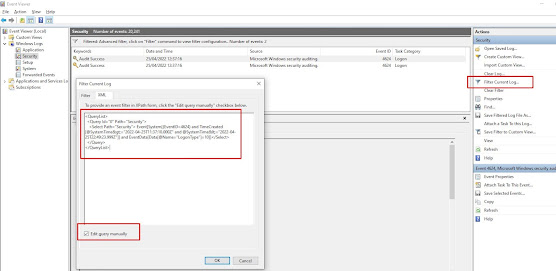
How to find the last interactive logons in Windows using PowerShell
Use the following powershell script to find the last users to login to a box since a given date, in this case the 21st April 2022 at 12pm un...
-
Quite by chance today I stumbled across a new way to learn Resharper shortcuts. In visual studio, when editing a file, tap the ctrl key thre...
-
http://www.jaguarforums.com/forum/s-type-s-type-r-supercharged-v8-15/key-fob-battery-replacement-write-up-faq-54380/ NOTE: MAKE SURE YOU DO ...

